"Couldn’t verify your identity E0000001" when Loading Okta Verify on iPhone
Details
This article is for: 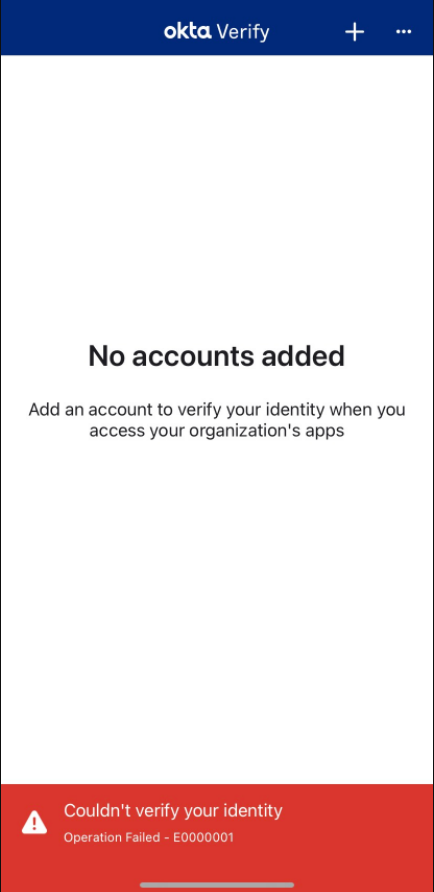
- users having issues enrolling Multifactor Authentication (MFA) using Okta Verify on an iPhone device, even after resetting MFA
- users getting the below error on an iPhone device:
Couldn't verify your identity Operation Failed - E0000001
Cause
Cached network settings not flushing for new MFA setup
Solution
- Go to iPhone Settings.
- Tap on General > Transfer or Reset iPhone.
- Tap on Reset.
- Reset Location & Privacy > Enter lock screen passcode.
- Return to Transfer or Reset iPhone > Reset > Reset Network Settings > Enter lock screen passcode.

- The phone will reboot once confirmed.
- Once the phone is rebooted fully, retry the steps to setup Okta Verify.
Symptoms
- Unable to active Okta Verify
- Operation Failed - E0000001
- Couldn't verify your Identity
Solution Properties
- Keywords
- error okta iphone E0000001 operation-failed Verify iOS TDX
- Solution ID
- 250313101838213
- Last Modified Date
- 09/04/2025 10:13:08 AM
- Taxonomy
- Collections
-
- External Collection
- Faculty and Staff Content
- Student Content
- Views
- 0